![Text Logo White.svg]](https://support.apprentiscope.com/hubfs/Company%20Logos/Text%20Logo%20White.svg)
User Types: Regulators, Sponsors, Employer Administrators & Supervisors
Step 1: Navigate to the Participant's Profile Details page
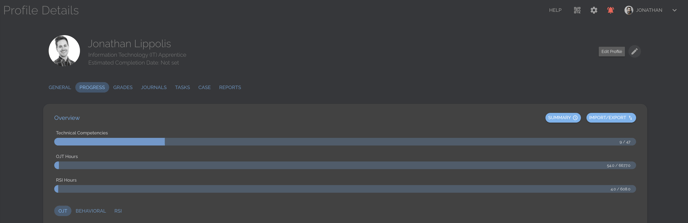
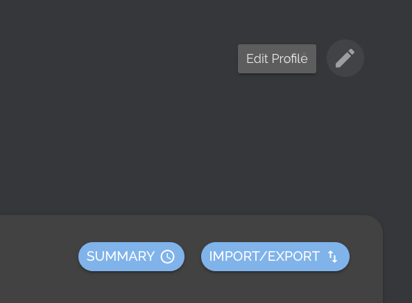
Step 2: Click the Edit Profile Pencil in the top right corner
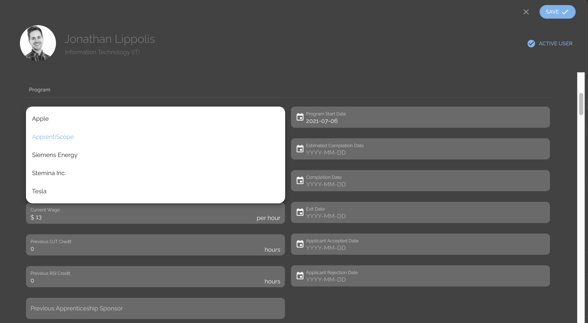
Step 3: Scroll down to and Click the Employer box and select the new Employer from the drop-down list & Click Save
- Note: You can also edit a single participant's employer or multiple participants' employer at once by using the Batch Edit option under the Participant List ACTIONS button.