![Text Logo White.svg]](https://support.apprentiscope.com/hubfs/Company%20Logos/Text%20Logo%20White.svg)
User Types: Regulators & Sponsors
Notes:
- The demographic data for RAPIDS can be collected for any and all participants, even if they are not required to be registered in RAPIDS.
- See Overview: RAPIDS & SAA compliance for methods for having particpants enter their own data.
- This article provides methods for allowing non-participants to enter RAPIDS demographic data for applicants and/or participants.
- If applicants or participants are initially given managed accounts, the batch upload option below is the easiest option.
Batch Upload RAPIDS Data
Step 1: Navigate to Participants & Select the User Type that Needs RAPIDS Data
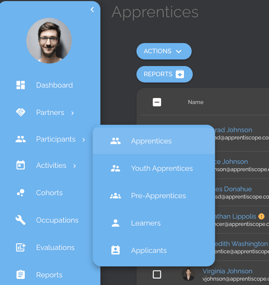
Step 2: Checkmark the Participants Whose Data will be Uploaded
- Only participants you checkmark will be included on the CSV template provided to upload RAPIDS data. If you want to include more than the default 25 on a page, expand the page to show more participants using the icon that says 25 with 3 horizontal lines next to it on the top right of the page.
- A blue ACTIONS button will appear once you checkmark at least one apprentice.
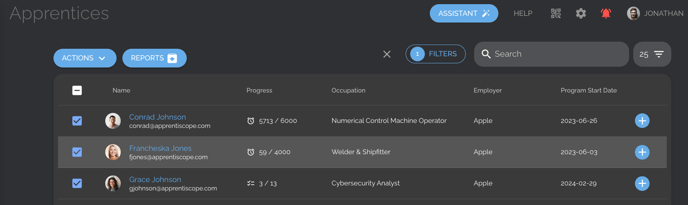
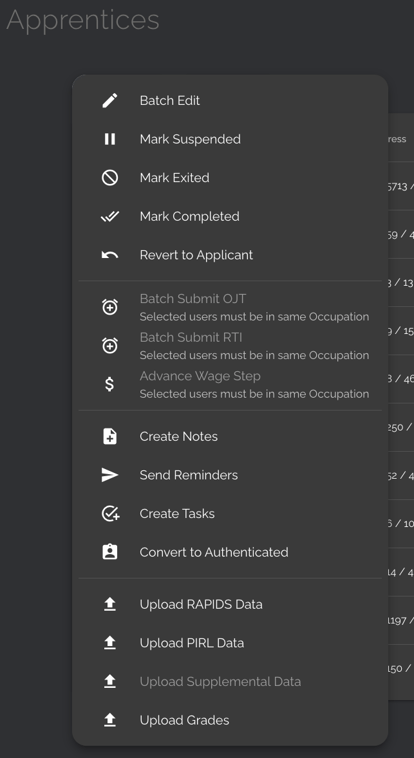
Step 3: Click the Actions button, and then Select Upload RAPIDS Data
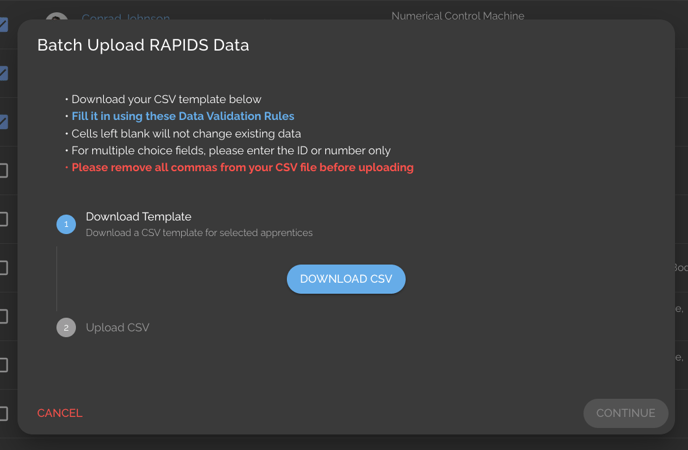
Step 4: Download the CSV Template and the Data Validation Rules File
- In order for data to upload correctly and be usable to autofill other reports and forms, it must be entered following the Data Validation Rules.
Step 5: Add RAPIDS data to the CSV Template
Keep the following in mind when populating the template:
- Cells left blank will not change existing data.
- Populated cells will overwrite existing data.
- For multiple-choice fields, please enter the ID or number only.
- For dates, use the YYYY-MM-DD format.
- Ensure all commas are removed from the CSV.
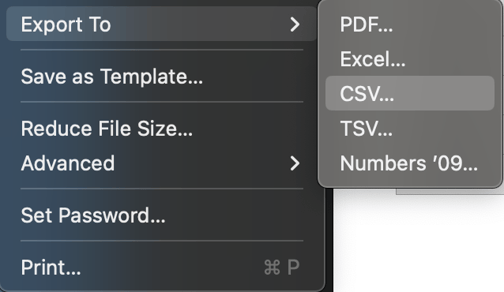
Step 6: Export the spreadsheet as a CSV
- In Numbers, click File, Export to, then CSV.
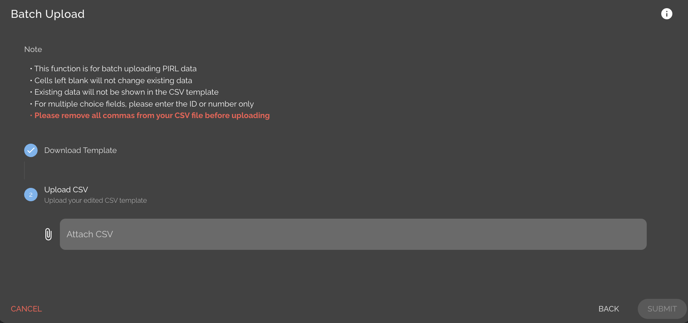
Step 7: Upload the CSV in ApprentiScope and Click Submit
Manually Enter or Edit RAPIDS Data
Users with sufficient permissions can enter applicant or apprentice RAPIDS data by editing their profiles individually.
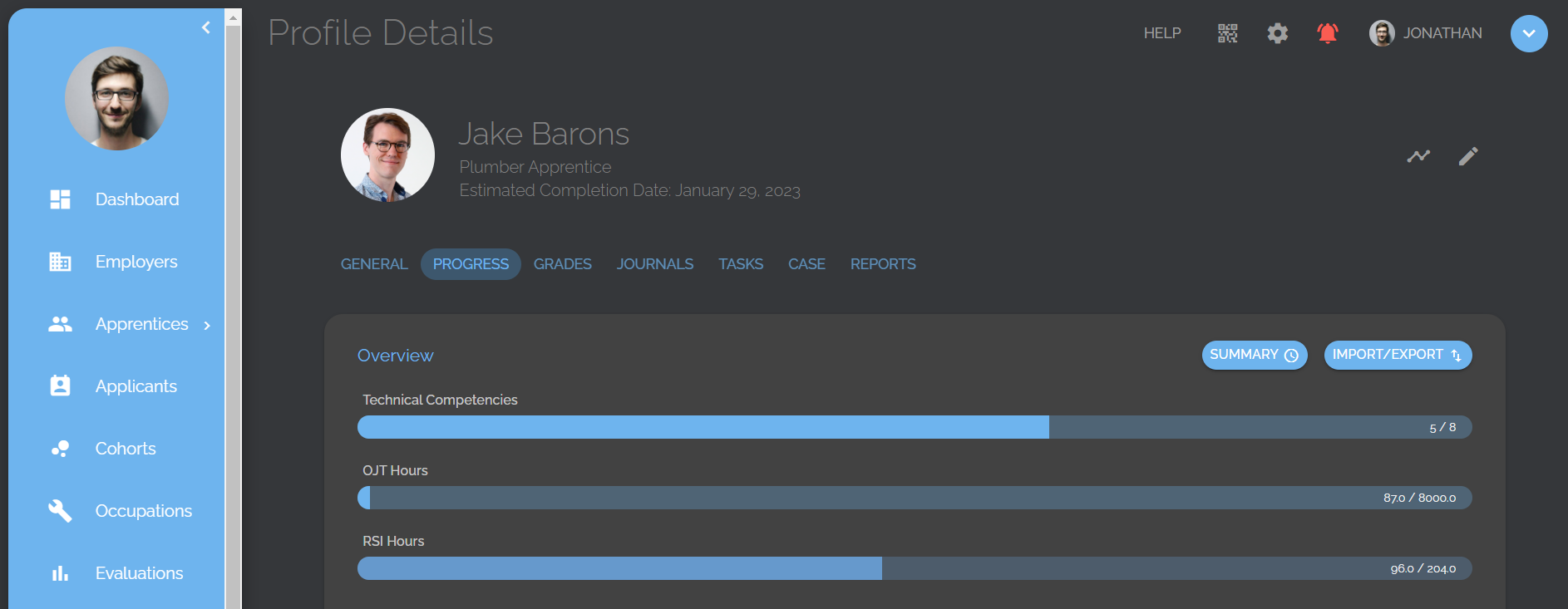
Step 1: Navigate to any Participant's Profile Details Page & Click Either the General Tab or the Edit (pencil) Icon in the Top Right.
- The General Tab will show you all the demographic data and you will then need to click the Edit icon on that tab.
- The Edit icon will take you directly to an editable version of the data on the general tab.
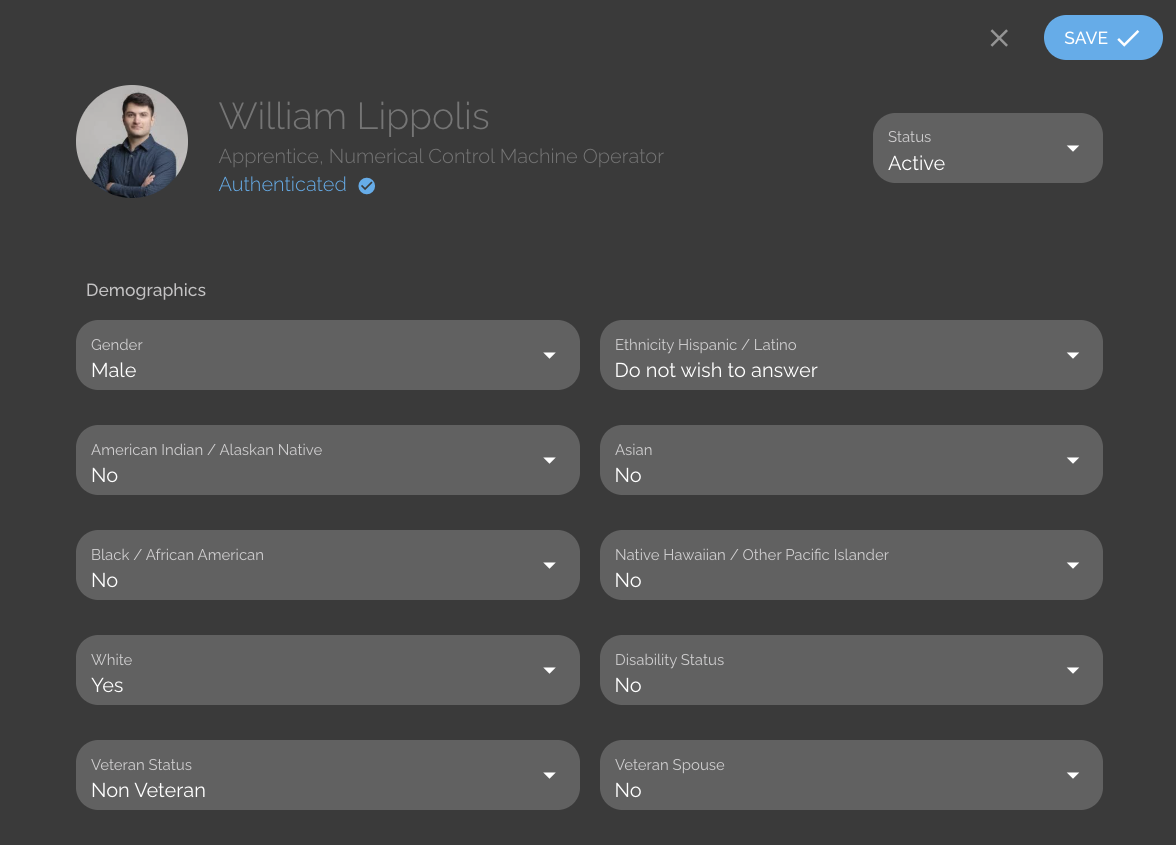
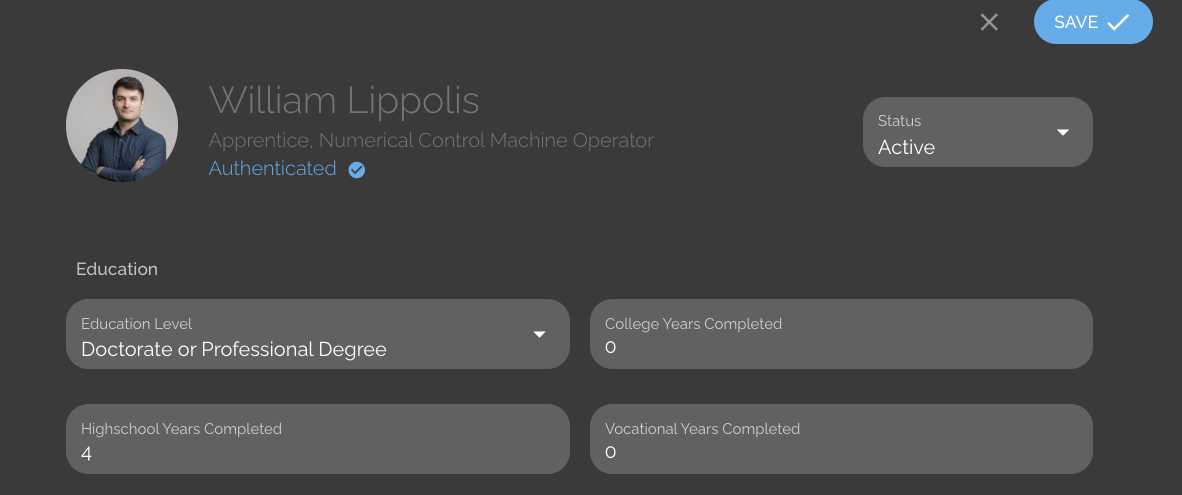
Step 2: Scroll to the Demographics &/or Education Sections & Click any Box to Enter or Edit its Information.
- The dropdown arrows in each box will provide you with the available answer options if appropriate.