![Text Logo White.svg]](https://support.apprentiscope.com/hubfs/Company%20Logos/Text%20Logo%20White.svg)
User Types: Regulators, Sponsors & Employer Administrators
Note: If you are unfamiliar with ApprentiScope's Grant Management functionality, please look at this article first: Overview: Grant Management
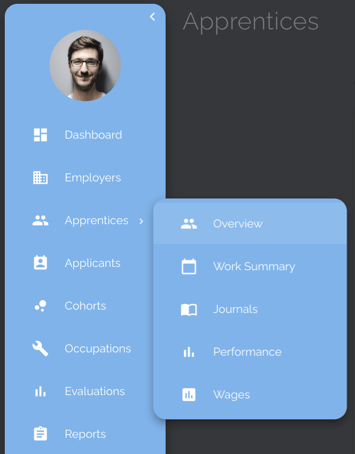
Step 1: Navigate to the Apprentices > Overview tab
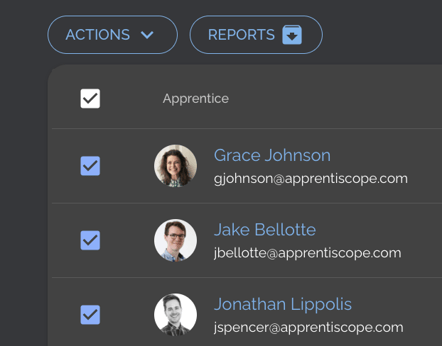
Step 2: Checkmark the Apprentices you want to upload data for
- Note: Only apprentices you checkmark will be included on the CSV template. If you want to include more than the default 25 on a page, expand the Apprentices > Overview to show more apprentices.
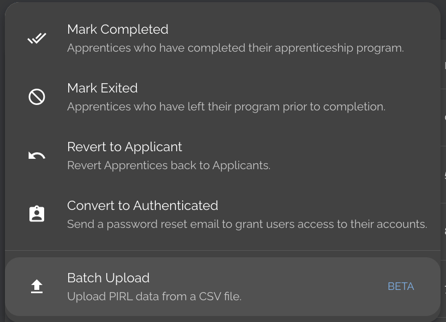
Step 3: Click Actions, then Batch Upload
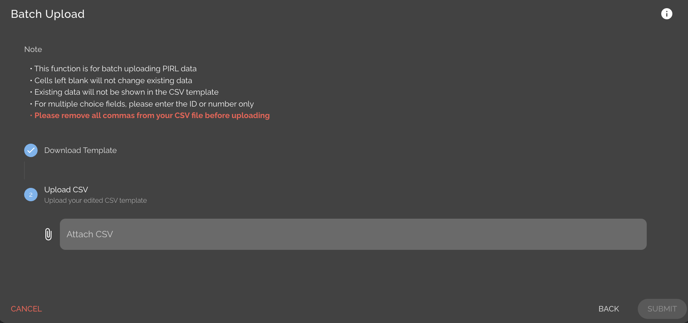
Step 4: Download the CSV Template
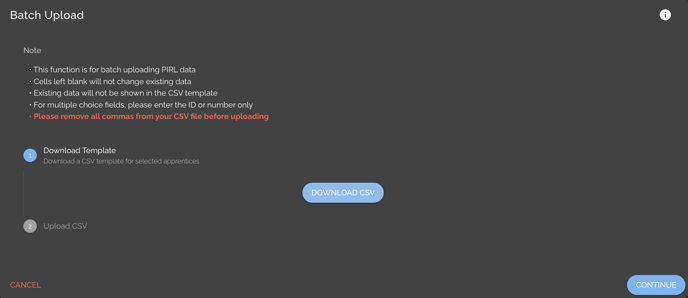
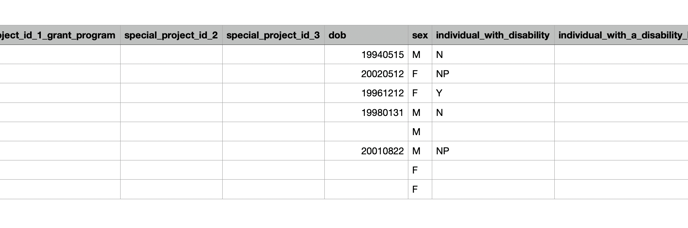
Step 5: Add PIRL information to the CSV Template
- Keep the following in mind when populating the template:
- Cells left blank will not change existing data
- Populated cells will overwrite existing data
- For multiple-choice fields, please enter the ID or number only
- For dates, use the YYYYMMDD format
- Ensure all commas are removed from the CSV
- Click here to view PIRL Validation Rules
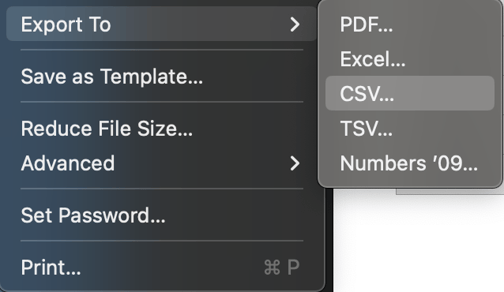
Step 6: Export the spreadsheet as a CSV
- In Numbers, click File, Export to, then CSV.
Step 7: Upload the CSV in ApprentiScope and click Submit
- Note: Only apprentices that are checkmarked (see Step 2 above) will have data uploaded for them. Ensure all applicable apprentices are check-marked before batch uploading the information.