
User Types: Apprentices
⚠️ Applicant Notice
If you are uploading documents as part of an application checklist, the instructions in this article do not apply. Please refer to the checklist instructions instead:
How Do I Complete My Application Checklist?
https://support.apprentiscope.com/how-do-i-complete-my-application-checklist
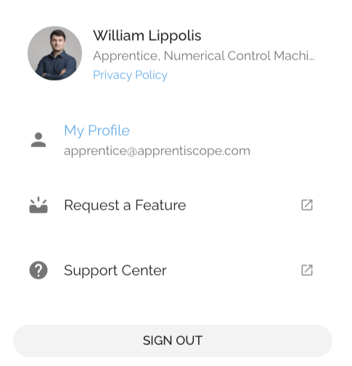
Step 1: Click your profile in the far right of the toolbar

Step 2: Click "My Profile"
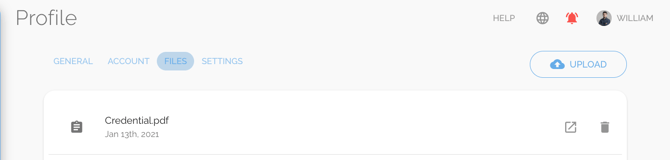
Step 3: Click the Files tab and then the Upload button.
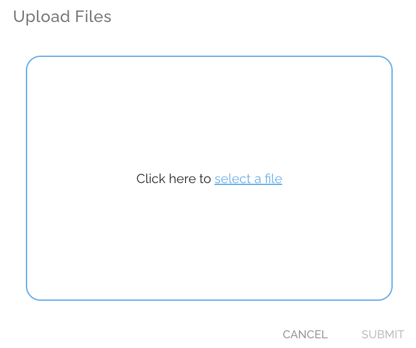
Step 4: Click "select a file" to select a file to upload
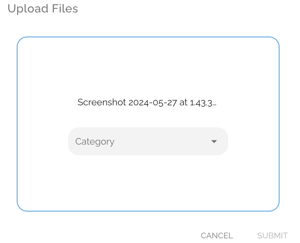
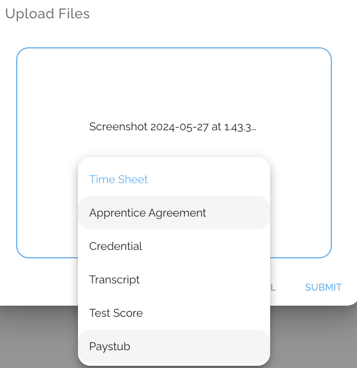
Step 5: Click the name of the file Category in which you want to place the file and click Submit
- Note: A notification will pop up to confirm that the file was uploaded successfully.
Step 6: Any Files that your program uploads for you, will also appear under your Files tab.