
User Types: Apprentices
Your program will notify you how often they want you to enter & save your on-the-job (OJT) training hours AND how often you are required to submit them to program personnel for review and/or approval.
- Saving OJT hours, which can be done as often as daily, will save them as Drafted and will appear at the top of the Time Log page. Only apprentices will have access to Drafted Hours.
- Drafted hour submissions show in light gray on the Time Log page.
- Drafted hours can be edited & deleted by clicking the gray item (if such permission has been given).
- Submitting OJT hours will send any drafted hours that have not yet been submitted for that month to program personnel for review and/or approval, depending on program requirements. One submitted, program personnel can see the date range for the hours that have been submitted and the actual date on which the submission was made.
- Submitted but unapproved hours show in dark gray on the Time Log page.
- Submitted and approved hours show in blue on the Time Log page.
- Approved hours cannot be edited or deleted by apprentices.
Step 1: Navigate to Time Log in the Navigation Bar
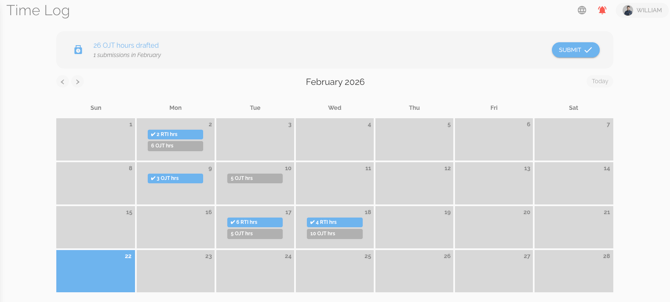
Step 2: Click the Date on the Calendar for which you want to Draft/Save OJT Hours
- Use the <> icons in the top left corner to change the calendar month. Your program may limit how far back in time you can submit hours; the software will provide a message if this is the case.
- You can only make one OJT submission per day.
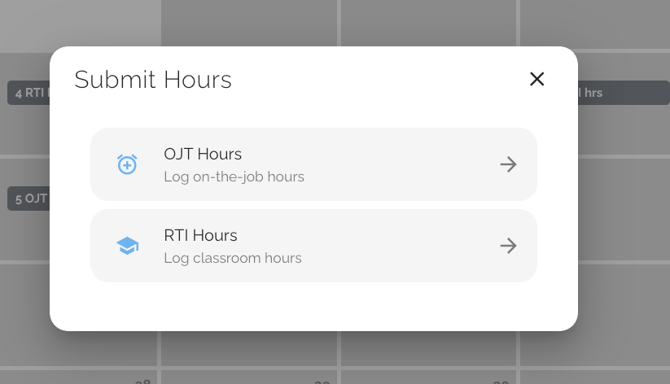
Step 3: (Only for Some Programs) Clock In & Out
- For some programs, you may be required to enter the exact time you worked. In that case, you will see the following box to clock in and out. Once you clock in and out, go to Step 4.
- If you do not see the clock in/out box, skip to Step 4.
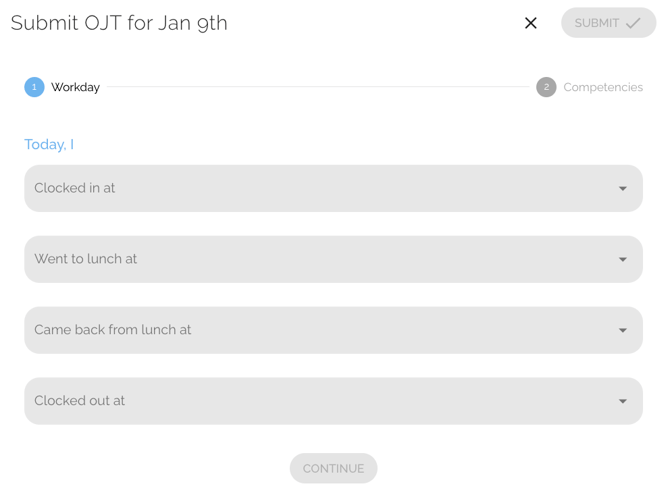
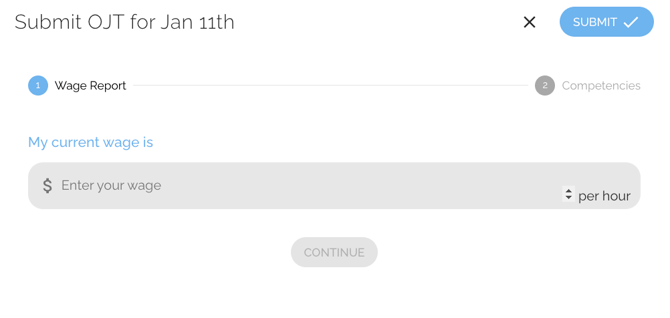
Step 4: (Only for Some Programs) Select Employer and/or Current Wage
- For some programs, you may be required to enter the exact time you worked. In that case, you will see the following box to clock in and out. Once you clock in and out, go to Step 4.
- If you do not see these boxes, skip to Step 5.
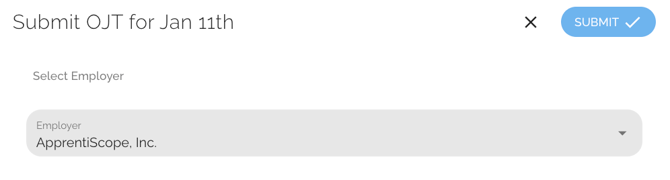
Step 5: Enter the Number of Hours Performed in the Appropriate Competency Box(es)
- To save draft hours, simply click the box and type in the hours or click "hours" and use the arrows that appear. If you had to clock in and out in Step 3, you will not be able to submit more hours than the number of hours you clocked in as working.
- Some programs will require that hours be broken down for each competency; others will require you to submit hours to 1 or several total hour categories.
-
If you are required to provide comments or documentation for the hours, click the Comments section below any Competency or scroll to the bottom of the box and lick the Attachment Icon.
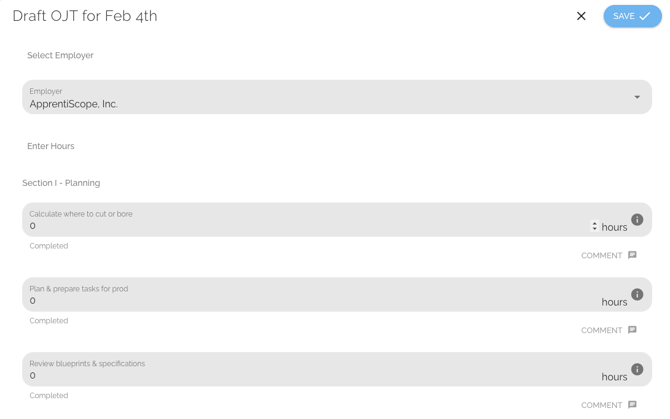
Step 6: Click SAVE to Officially save the Hours as DRAFTED
- Total drafted hours will show at the top of the Time Log page for each individual month.
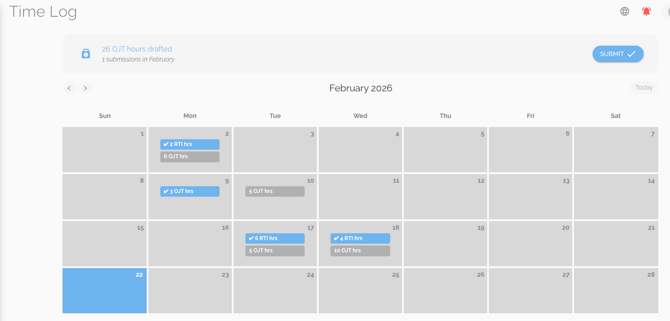
Step 8: To Edit or Delete OJT Hours:
- On the Time Log calendar, click any light gray submission (not all programs allow this). You can not edit or delete hours once they have been submitted. If you have made an error, contact your program personnel for guidance.
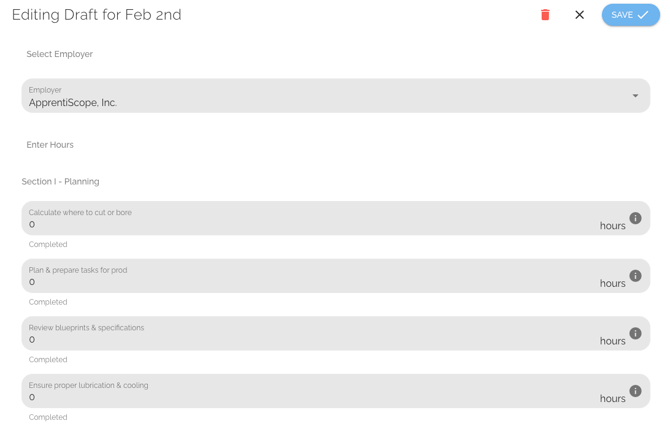
- In the Edit box that appears, change the hours by clicking on the previous hours and editing them or clicking "hours" and using the arrows that appear to increase or decrease the hours. Click SAVE.
- To delete a previous submission in full, click the red delete icon on the Edit box. You can then follow the Steps above to resubmit hours for that date if necessary.
Step 9: To Submit OJT Hours for Program Review and/or Approval, Click the Submit Button on the Drafted Banner.

- Clicking SUBMIT, will combine and submit the total hours for any day for in that month that you have not previously submitted. Once you submit your hours, the Drafted hours for that month will return to "0".
- Clicking Submit will only submit hours for that month. If you have hours for a previous month that have not been submitted, you will need to change the month that appears on your Time Log page and click the Submit button on that page.
- Your program personnel will tell you how often or when you are required to submit your hours. Some may require submissions weekly, biweekly or monthly or on certain days of the month.