
User Types: Regulators, Sponsors, Employer Administrators, Supervisors & Mentors
Note: Any user with access to a participant's record will be able to add and view certifications. Participants can only view certifications uploaded in to their account if the View Certifications permission is turned on for them under Settings - User - Participants.
Step 1: Navigate to a Participant's Profile Details (by clicking their name from anywhere on the platform)
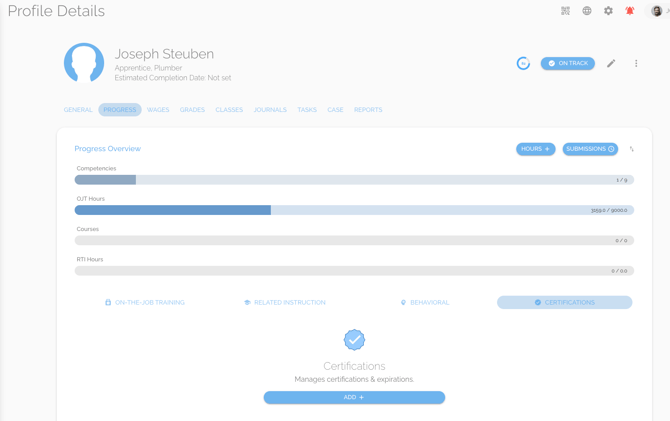
Step 2: Click the Certification oval to see the Certifications section
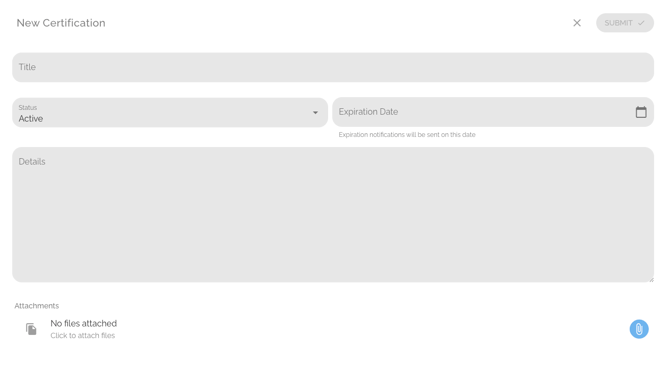
Step 3: Click ADD+ to Add a New Certification
- An Expiration Date is required, as the system will send you an email notification 30 days prior to a certification's expiration. If the certificate does not expire, select a date in the distant future.
- Click Submit to save the certification.
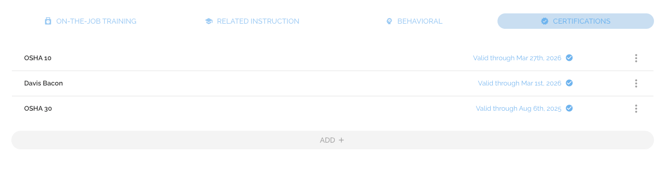
Step 4: Click the Certification's Name to Review or Edit It's Details.
Step 5: Click the 3 Vertical Dots to the Right of the Certification to Delete It.

If you have questions or need help, please submit a Support Ticket here.