
User Types: Regulators, Sponsors & Employer Administrators
- Regulators and sponsors have default access to approve wage increases; however they can authorize other users to perform this function.
Apprentice OJT hours do not need to be approved in order for wages to be triggered and approved.
Step 1: Navigate to ACTIVITIES - WAGES on the Navigation Bar (or Apprentices-Wages depending on your user type)
- Any apprentice due for a wage increase based on your pre-set wage schedule will appear on this page.
- If you'd like to be notified when someone is eligibile, set your personal notifications on [Settings > My Profile > Settings - toggle the wage notification to on (blue)]
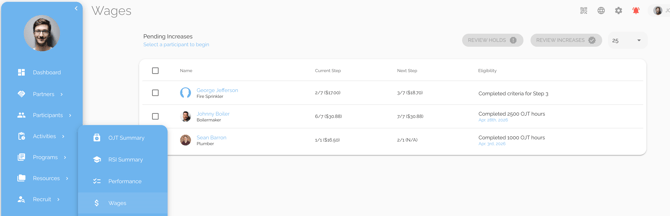
Step 2: Select the Apprentice(s)
- Select an apprentice for action by clicking the empty box to the left of their name. Or click the empty box above all the apprentices to select all apprentices on that page (note only 25 apprentices. show on each page).
- Review Hold and Review Increase buttons will highlight.
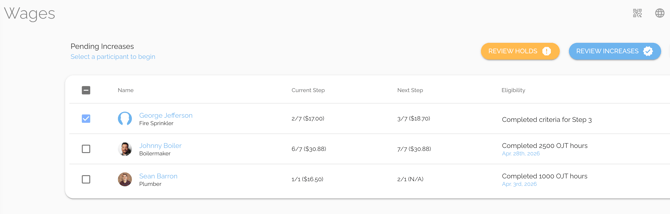
Step 3A: Click Review Increases
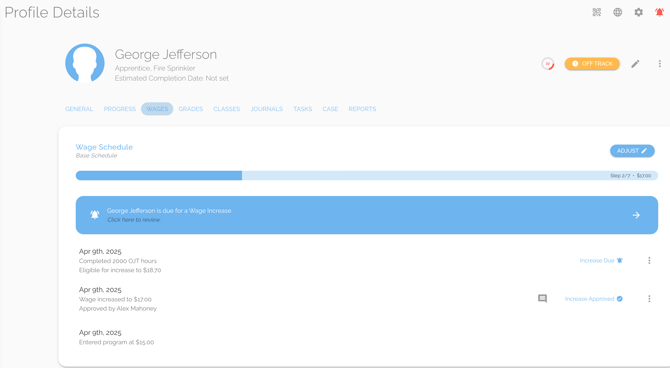
Participant's Profile Details - Wages tab
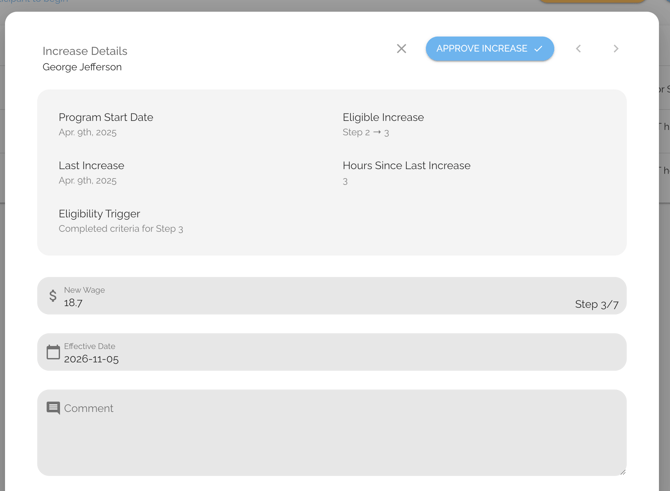
- If you click APPROVE INCREASE the participant's profile - wages tab will document their increase to the next Wage Step and their New Wage (which is the minimal required wage based on the Wage Schedule for the participant's occupation). By default this new wage, will appear on the participant's Current Wage field on their profile general tab. If you want their Current Wage to reflect their actual wage as opposed to the minimal required wage, you can type that amount into the New Wage field before approving the increase.
- If you want a comment to appear with your approval, you can add it to the comment box. Comments only are saved if the increase is approved.
- An apprentice will remain on the WAGES list until you choose to Approve the increase or place a hold on their increase. Once action is taken, the apprentice will disappear from the Wage Progression page.
- If you do not want to approve the increase, you can:
- Leave the participant on the Wages tab until you are ready to approve them, or
- Place a hold on the participant's wage increase by clicking
OR Step 3B: Click Review Holds
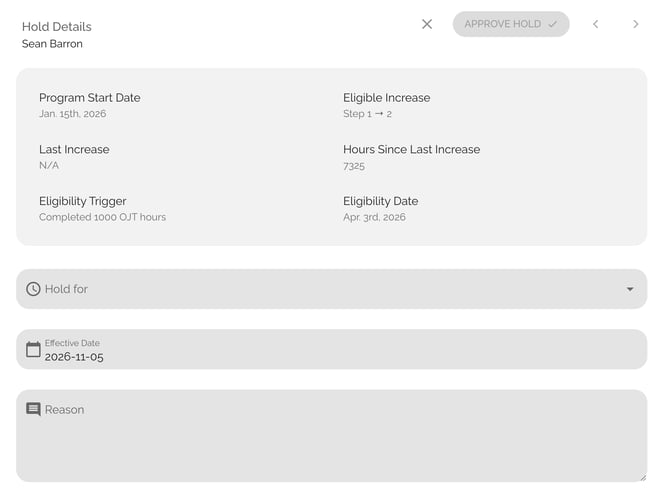
- This will allow you to place a hold on the participants' wage step increase.
- Enter the length of the hold. If the occupation is time-based, you will need to place a hold based on as set number of OJT hours, if it is month-based, you can place the hold for a number of months. You can also indicate the reason for the hold.
- Once you click "Approve Hold" the participant will disappear from the Wages page and will not reappear until the hold length expires. They will then reappear on the Wages page at which time you can place another hold or approve their increase.
Step 4: Review Wage Progress History (optional)
- To review an apprentices current wage and wage history at any time, navigate to the apprentice's profile details - wage tab. It will show their:
- current wage and step,
- when they are up for their next wage increase, and
- a history of when they were eligible and whether it was approved or put on hold.
