
User Types: Sponsors
- ApprentiScope supports a direct integration with QuickBooks Online, allowing sponsor users to create and send invoices to customers without leaving the platform. Once the integration is configured, your QuickBooks customers and products are automatically pulled into ApprentiScope, and invoice status changes (such as Paid or Void) are synced back in real time.
- See Quickbook Integration Guide for how to configure the integration.
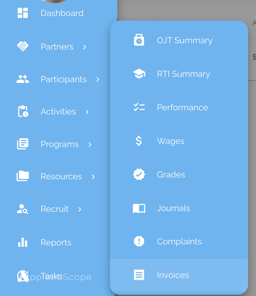
Step 1: Navigate to Activities - Invoices on the Blue Navigation Bar
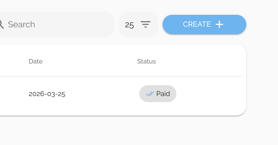
Step 2: Create an Invoice by clicking Create + and Completing the New Invoice box
-
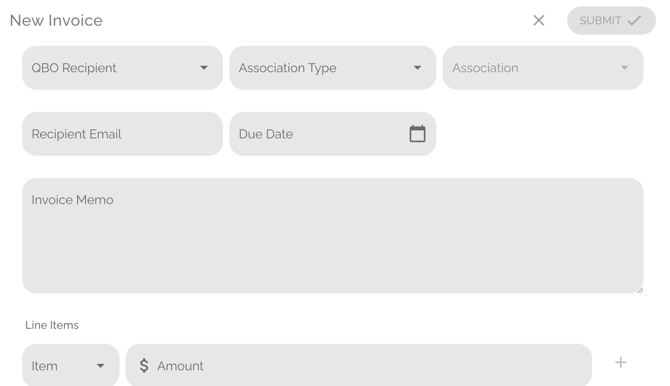
QBO Recipient - select a recipient from the dropdown — this list is populated from your QuickBooks customers.
- Association Type - select whether the recipient is a program Partner or Participant
- Association - If a partner, select their partner company/organization
- Recipient Email - input where the invoice should be delivered. Invoice can only be send to one recipient.
- Due Date - select the payment due date for the invoice
- Invoice Memo - optional note that will appear on the memo
- Line Items - select an Item from your QuickBooks product catalog and enter the Amount.
- Click "+" to insert the official line item and to optionally add any additional line items
Step 3: Send the Invoice by Clicking "Submit"
Note: Clicking Submit immediately sends the invoice to the recipient. Please review all details carefully before submitting.
The invoice will:
-
be sent directly to the recipient's email address from Quickbooks or your domain as configured in Quickbooks,
-
appear in your connected QuickBooks Online account, &
- appear as a line item on the ApprentiScope Invoice page.
Notes:
-
Once submitted, an invoice can only be edited, cancelled or voided from Quickbooks.
- Invoices do not appear on any platform user's account/profile page, including the invoice recipient.
Step 5: Review Invoice Statuses When an invoice status change occurs in QuickBooks — such as a payment being recorded or an invoice being voided — the updated status will be reflected in ApprentiScope.
Supported statuses include:
- Paid – The invoice has been fully settled.
- Void – The invoice has been cancelled or marked invalid in QuickBooks.

Note: The red ! icon appears for any invoice past its due date.